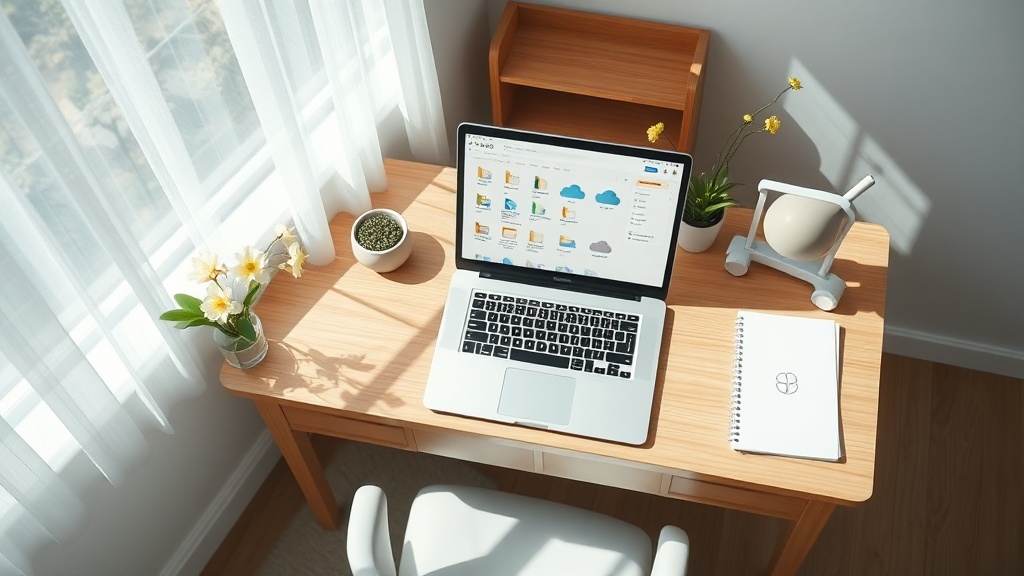
Spring Cleaning Your Digital Workspace: A Step‑by‑Step Guide to Boost Productivity

Why does a digital spring cleaning matter right now?
Ever opened your laptop and felt the same mental fog you get when you stare at a cluttered kitchen counter? I’ve been there—my desktop looked like a chaotic pantry after a holiday feast. That’s why I treat my digital workspace the way I treat my living room: with a seasonal purge that restores focus and sanity.
What’s the first step to a cleaner digital desk?
Audit your file hierarchy. I start by opening the root of my Documents folder and asking three questions for every sub‑folder: Is it still relevant? Does it contain duplicate content? Can it be archived?
Tip: Use the built‑in search type:folder modified:<2024 (or the macOS equivalent) to surface folders you haven’t touched in over a year. Those are prime candidates for archiving.
How do I declutter my cloud storage without losing anything?
Cloud services are the modern equivalent of a garage full of boxes you never open. Here’s my three‑phase approach:
- Tag and filter. Apply a
#keeptag to files you need now,#reviewto those you’re unsure about, and#archiveto the rest. Most services let you filter by tag—use that view to bulk‑move#archiveitems to a long‑term bucket. - Compress old media. Large video or RAW image files gobble up space. Convert them to
MP4orHEICwith a lossless setting, then store the originals on an external SSD you keep in a drawer (yes, a physical backup still makes sense). - Set retention rules. I configure Google Drive to automatically delete files in the
Trashafter 30 days and to flag any file larger than 1 GB for review each quarter.
For a deeper dive on cloud archiving, see my Personal Data Cleanse guide.
Which apps and extensions are just digital junk?
Browser extensions are the “kitchen gadgets you never use.” I run a quarterly notification purge that includes a quick audit of every installed add‑on. If you haven’t used it in the last six months, disable or uninstall it. The same goes for desktop apps—drag them to the recycle bin, then reinstall only the ones you truly need.
How can I set up an ergonomic virtual environment?
Ergonomics isn’t just about chairs; it’s also about the visual layout of your screens. I follow a three‑step “Virtual Desk” routine:
- Screen real‑estate. Use a single high‑resolution monitor with Windows Snap or macOS
Mission Controlto tile windows. No more endless alt‑tabbing. - Theme and lighting. Switch to a “focus” color scheme—muted greys with a soft blue accent. My Quiet Tech roundup recommends a blue‑light filter lamp to reduce eye strain during long coding sessions.
- Background noise. Play a low‑volume ambient track (rain, coffee shop) on a dedicated tab that never gets closed. This isolates your work zone from the chaotic chatter of notification sounds.
What’s the final checklist before I call it a day?
After the deep clean, run through this quick audit:
- All top‑level folders are named consistently (e.g.,
Projects/2026/ClientX). - Cloud storage shows less than 20 % of total quota used.
- No more than three browser extensions are active.
- Desktop wallpaper is a neutral color—no motivational quotes that scream for attention.
- Schedule a weekly 15‑minute “digital tidy‑up” to keep the momentum.
Takeaway
Spring isn’t just for washing windows; it’s the perfect excuse to purge the digital clutter that drags down productivity. By auditing your files, streamlining cloud storage, pruning unused apps, and crafting an ergonomic virtual desk, you’ll reclaim mental bandwidth and actually get work done. Schedule your digital spring cleaning this week—your future self will thank you.
Related Reading
- The 3‑Minute Daily Signal Filter — a quick‑hit method to stop information overload.
- Digital Detox Retreats 2026 — when you need a full‑off reset after the cleanup.
- Bio‑Harmony 2026 — syncing your circadian rhythm with your work schedule.